Integrating Smart-ID and Mobile-ID into a web app
How Smart-ID and Mobile-ID sign-in work for developers in 2026: the v3 device-link flow, verification codes, test accounts, going live and signing.

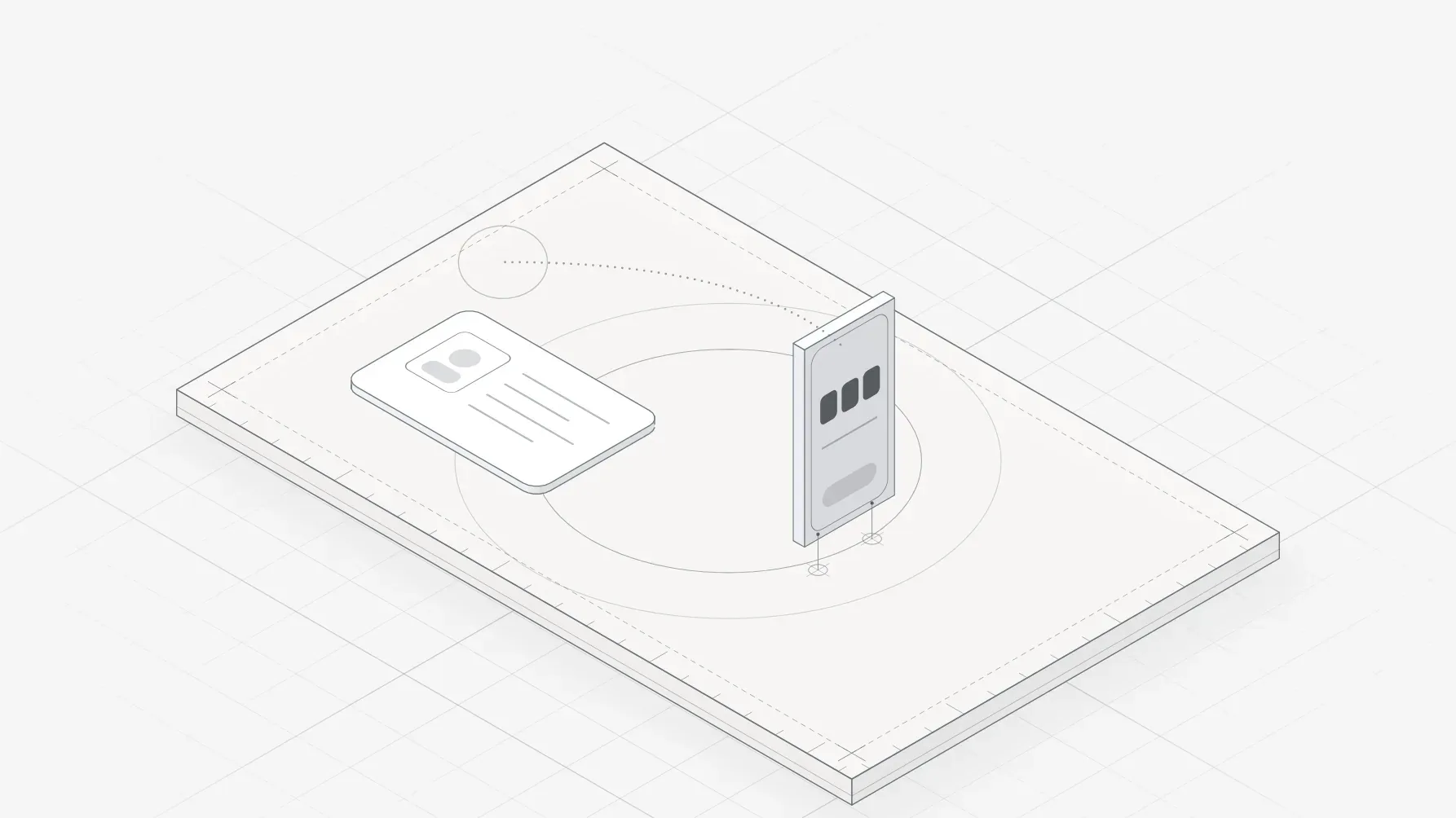
In Estonia, people expect to sign in and sign documents with Smart-ID, Mobile-ID or their ID card, the same way they use public services. For a startup, supporting Smart-ID and Mobile-ID is often the difference between a product that feels local and one that feels foreign. The integration is well documented, but the details matter: the Smart-ID API changed significantly with version 3, and both services have security and user experience rules you must follow.
This guide explains how each service works from the relying party's side (your app), what changed in Smart-ID v3, how to test, what it costs to go live and how signing differs from login. Everything here is drawn from SK ID Solutions' own documentation, linked at the end. Always check those docs before you build: they change.
Smart-ID in 2026: what changed with v3
Smart-ID's relying party API is now on version 3. Versions 1 and 2 still work, and SK has not announced an end date, but it encourages everyone to move to v3. The big change, launched in mid 2025 as "Smart-ID+", is the device-link flow:
- On a computer, your app shows a QR code. The user scans it with the Smart-ID app on their phone.
- On a phone or tablet, your app opens the Smart-ID app directly (Web2App from a browser, App2App from your own app).
SK's recommendation is to always use device links, or device links on a new device and push notifications on devices you already know. Push-only flows are now "not recommended", because device links protect better against phishing. The new flows need Smart-ID app version 29 or later.
How a v3 device-link authentication works
- Start a session from your back end with a fresh random challenge (32 to 64 bytes) and the certificate level you need (advanced or qualified). Smart-ID returns a session token, a session secret and a base URL for the device link.
- Build the device link on the back end. It combines the link type (QR, Web2App or App2App), the session token, the session type and an authentication code: an HMAC-SHA256 of the session data, keyed with the session secret. The secret never leaves your server.
- Show it. For QR, regenerate the code every second on the server and never show one older than a few seconds. For Web2App and App2App, open the link.
- Wait for the result by long-polling the session status endpoint.
- Verify the response. Check that the session completed with an OK result, verify the certificate chain and revocation status, check the certificate level and policy, rebuild the signed payload and verify the signature. Take the person's identity from the certificate's serial number field, not its common name. Then rotate your own session ID.
With device links, the user does not need to compare a verification code, because the link itself ties the phone to your session.
Notification flow and the verification code
If you still use push notifications (for example, for returning users on a known device), your app must show a four-digit verification code and ask the user to check it matches the one in their Smart-ID app. They must not continue if it does not. SK's documentation gives the exact formula for the code, computed from the challenge bytes.
Two security rules apply to every flow: pin the Smart-ID service's TLS certificate, and show the same error message for every failure, so your sign-in cannot be used to find out who has an account.
Mobile-ID
Mobile-ID works with a special SIM card from an Estonian mobile operator. The flow is simpler and older:
- The user enters their phone number and personal identification code.
- Your back end starts an authentication with a hash (random bytes are fine for login).
- You show the verification code derived from that hash, and the user checks it on their phone.
- You poll the session status until the user confirms or the session times out (around two minutes for the user).
- You verify the signature over your hash with the returned certificate, check the certificate, and rotate your session ID.
Mobile-ID also requires certificate pinning. It has no QR or device-link flow.
UX rules worth following
SK publishes interface guidance for Smart-ID, and it is worth following closely:
- On a computer, offer the QR code option; on phones and tablets, offer both the app-to-app option and the QR code.
- Use SK's wording, such as asking the user to finish authentication in the Smart-ID app, and its fallback message when a browser cannot open the app.
- Write "Smart-ID" exactly that way. The official login buttons are free to use.
- For notification flows, make the verification code large and ask the user to compare it.
Testing and going live
| Step | Smart-ID | Mobile-ID |
|---|---|---|
| Build and test | Free demo environment with a public demo UUID, auto-responding test accounts and demo apps on TestFlight and Google Play | Free demo environment with a demo UUID and test phone numbers |
| Go live | An agreement with SK, your server IPs whitelisted and a service name; SK issues your relying party UUID | Contact SK sales for production access |
| Public price (from 1 June 2026, ex VAT) | from EUR 0.109 per transaction, EUR 60 monthly minimum | from EUR 0.109 per transaction, EUR 33 monthly minimum |
A transaction is one authentication or one signing request. Timestamping and certificate status checks are priced separately.
Two dates matter right now: a new Smart-ID service TLS certificate goes live in production on 6 October 2026, and from 2 November 2026 only strong TLS cipher suites will be accepted on the production endpoints. If you pin certificates, update your pins in time.
Signing is a bigger job than login
Authentication is the quick part: SK estimates one to two days. Signing documents can take up to a week:
- Smart-ID v3 signs a digest you send and returns a raw signature. The recommended path is a device-link step to choose the certificate, followed by a linked notification to sign.
- Mobile-ID signing gets the certificate first, then signs, and you must add certificate status information to the signed container yourself, usually with a library such as DigiDoc4j (use a current version).
- If you need qualified electronic signatures on PDFs or ASiC-E containers, a broker such as eID Easy, Dokobit or Signicat can handle the signing and the container format for you, at their own prices.
A checklist before you ship
- Smart-ID RP API v3 with device links, QR generated server-side and refreshed every second.
- Session secret kept on the server; responses fully verified, identity taken from the certificate serial number.
- Certificate pinning in place, with the October 2026 certificate change handled.
- One error message for every failure case.
- Mobile-ID verification code shown clearly, session IDs rotated after login.
- Tested against the demo environments with SK's test accounts.
If you are building a product for Estonian users and want Smart-ID, Mobile-ID and the states around them done properly, this is the work we do. See our approach to development for Estonian startups.
Sources
All checked on 2 October 2026.
- SK ID Solutions, Smart-ID documentation: introduction and recommended flows, device-link flows, notification flows, response verification, API details, user experience, environments, test accounts, FAQ
- SK ID Solutions, Mobile-ID REST API
- SK ID Solutions, price list, Smart-ID+ announcement, service certificate change 2026, endpoint change on 2 November 2026
- Smart-ID, integration process and branding
- Brokers: eID Easy, Signicat